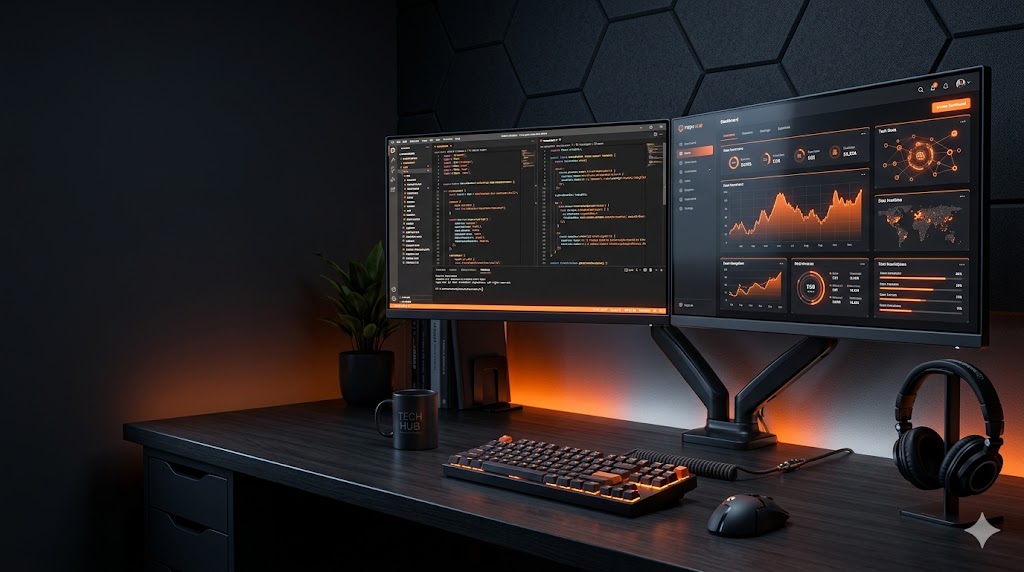
Whenever we build a new computer setup or upgrade our old system, our entire focus tends to be on the processor, graphics card, or RAM. However, we often ignore the very component we stare at all day long—our monitor.
A wrong monitor can not only ruin your computing experience but also cause eye strain and neck fatigue. With so many brands and models available in the market, choosing the right one can feel like a headache. If you are confused, don’t worry. In this guide, we will break down exactly what you need to keep in mind when buying a new monitor.
1. Determine Your Purpose and Budget
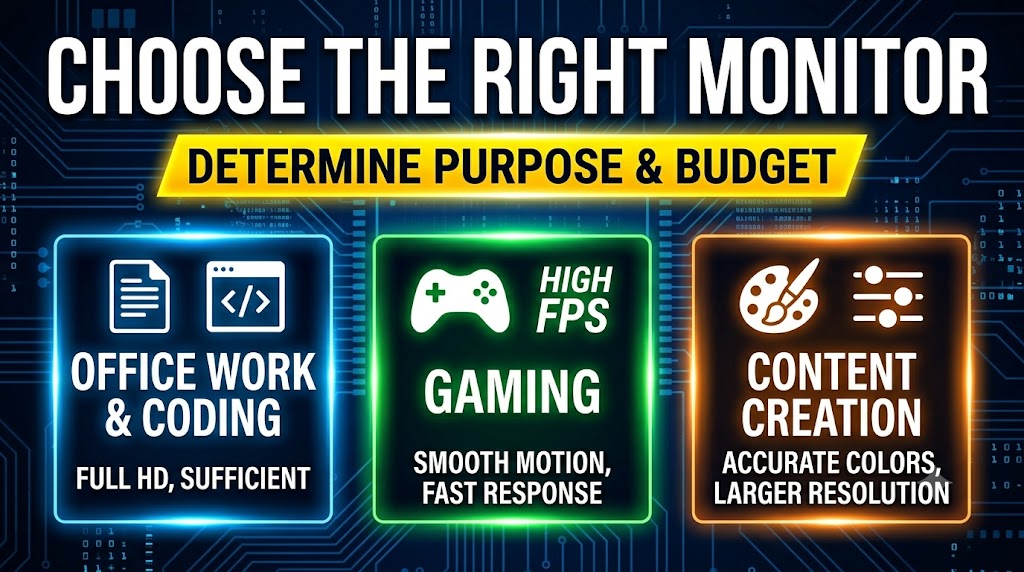
Before looking at monitors, ask yourself: “What will I primarily use this monitor for?”
- Office Work & Coding: A basic Full HD monitor is completely sufficient for reading documents, browsing, and coding.
- Gaming: Gamers need smooth motion (high refresh rate) and fast response times above all else.
- Content Creation: If you are a developer, video editor, or graphic designer, accurate colors and a larger resolution are your top priorities.
2. Choosing the Right Screen Size
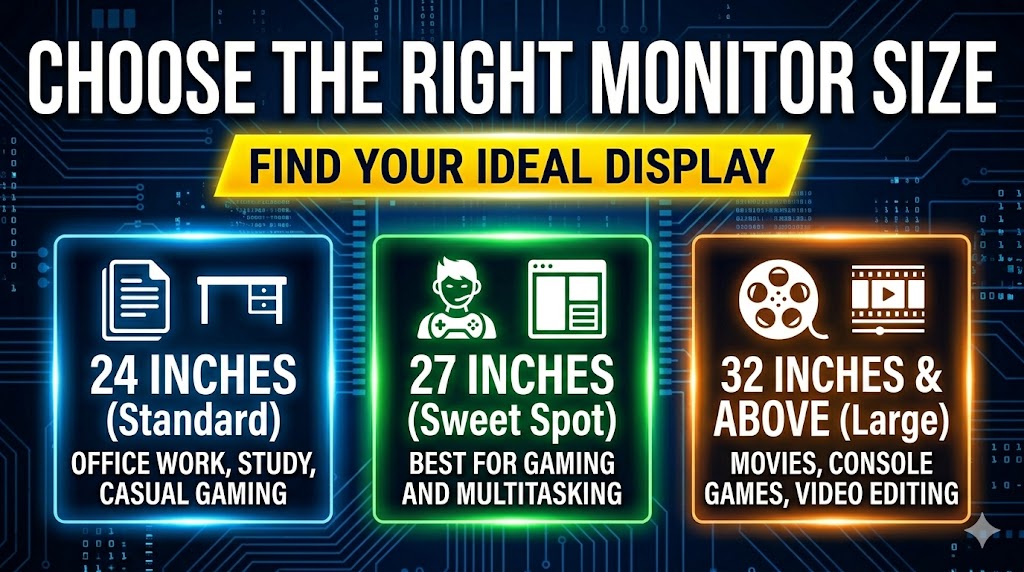
Monitor size is measured diagonally in inches. Choose based on your desk space and usage:
- 24 Inches: The most standard and budget-friendly size. Perfect for office work, studying, and casual gaming if you have limited desk space.
- 27 Inches: The current ‘sweet spot’. It is neither too small nor too large, making it the best overall size for gaming and multitasking.
- 32 Inches and Above: Go for this size only if you watch a lot of movies, play console games from a distance, or edit high-resolution videos on large timelines.
- 💡 Pro Tip: If you constantly work with multiple code windows or apps side-by-side, consider an Ultrawide (21:9) monitor for that extra horizontal screen real estate.
3. Understanding Resolution
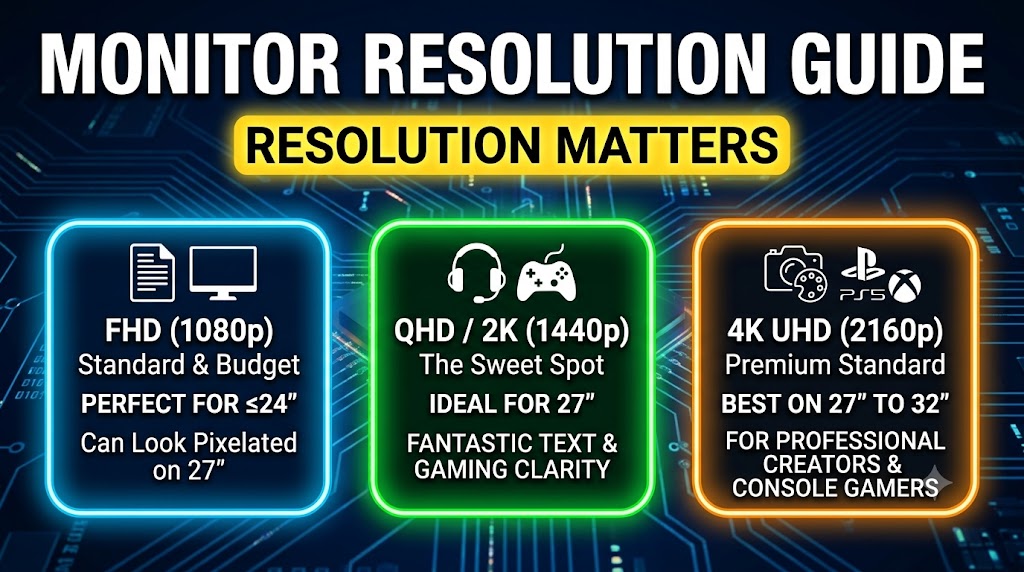
Resolution determines how sharp and crisp the images on your screen will look. The larger your screen size, the higher the resolution you need.
- FHD (1080p): Perfect for monitors up to 24 inches. On a 27-inch screen, 1080p can look slightly pixelated.
- QHD / 2K (1440p): If you are buying a 27-inch monitor, blindly go for 2K. The clarity for both text and gaming is fantastic.
- 4K UHD (2160p): The premium standard. It looks best on 27-inch to 32-inch monitors. Ideal for professional creators and PS5/Xbox gamers.
4. Panel Types: IPS, VA, or TN?
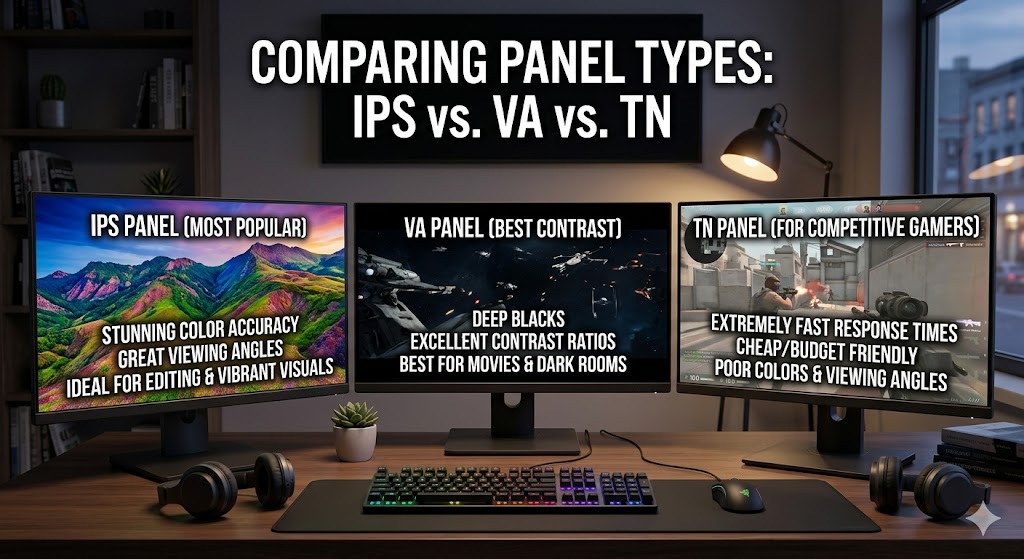
The display panel inside the monitor decides how your colors will look. Here are the three main types:
- IPS Panel (Most Popular): If your budget allows, always choose an IPS panel. It offers stunning color accuracy and great viewing angles. It is the top choice for editing and vibrant visuals.
- VA Panel (Best Contrast): This panel provides deep blacks and excellent contrast ratios. If you enjoy watching movies or gaming in a dark room, you will love a VA panel.
- TN Panel (For Competitive Gamers): These are cheap and have extremely fast response times, but their colors and viewing angles are poor. They are generally not recommended for everyday use anymore.
5. The Two Most Important Specs for Gamers
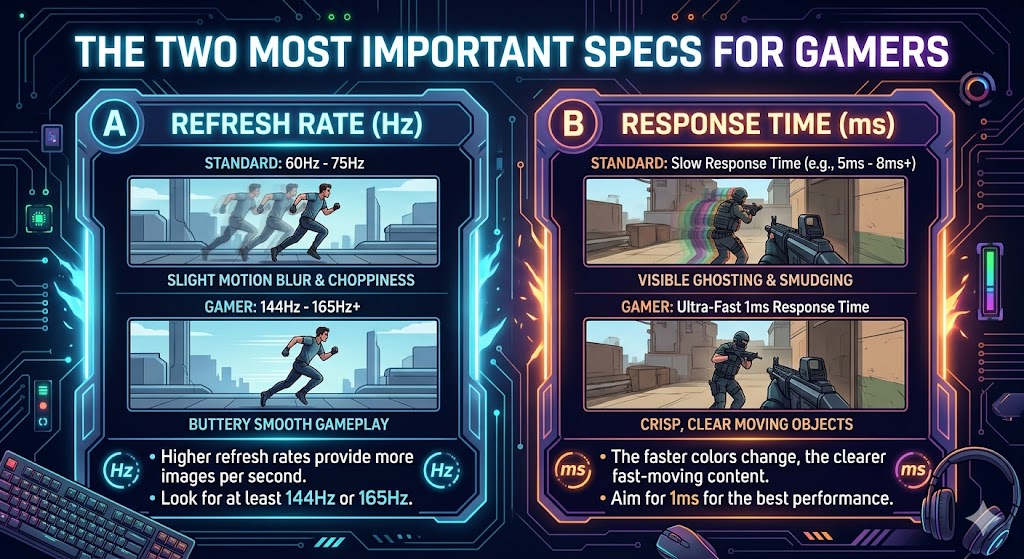
If you are into gaming, do not miss these two technical terms:
- Refresh Rate (Hz): A standard monitor is 60Hz or 75Hz. Gamers should look for at least 144Hz or 165Hz. Higher refresh rates make gameplay feel buttery smooth.
- Response Time (ms): This is how quickly pixels can change colors. For gaming, look for 1ms to avoid ghosting or blurring during fast motion.
6. Don’t Forget the Connectivity Ports
Always check the back of the monitor to see what ports are available:
- HDMI & DisplayPort: You need at least one of each. For high refresh rate gaming (like 144Hz+), using a DisplayPort is generally better.
- Type-C Port (Bonus): Many modern premium monitors include a USB Type-C port. This allows you to connect your laptop to the display and charge it simultaneously using just a single cable.
7. Ergonomics and Eye Care
- Adjustable Stand: Find a monitor with a height-adjustable stand so you can keep the screen at eye level. This prevents severe neck pain.
- Flicker-Free & Low Blue Light: Since we spend hours in front of screens, ensure the monitor has TUV Certified eye-care features to protect your vision.
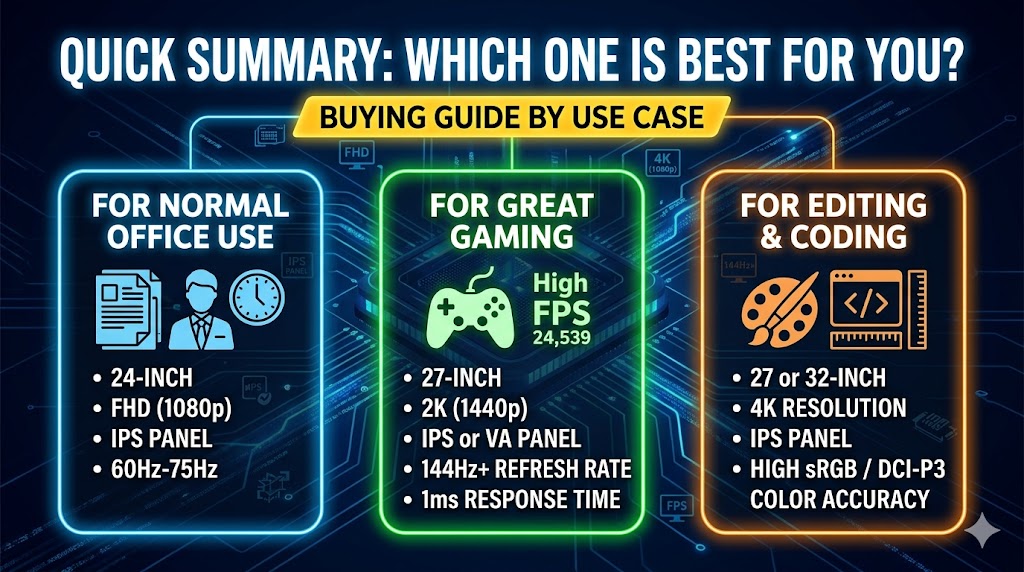
Quick Summary: Which one is best for you?
- For Normal Office Use: 24-inch, FHD (1080p), IPS panel, 60Hz-75Hz.
- For Great Gaming: 27-inch, 2K (1440p), IPS or VA panel, 144Hz+ refresh rate, 1ms response time.
- For Editing & Coding: 27 or 32-inch, 4K resolution, IPS panel (with high sRGB or DCI-P3 color accuracy).